Three-Point Lighting for Portraits in Daz Studio

Three-point lighting is a portrait setup that uses three lights: a key light to shape the face, a fill light to soften shadows, and a rim light to separate the subject from the background. Photographers have relied on it for decades, and in Daz Studio you can recreate it with three Iray spot lights in about 15 minutes. No HDRI, no guesswork.

This guide builds the setup one light at a time, with exact settings and a render after every step, so you can see what each light brings to the shot. By the end, your character will look like they just stepped out of a professional photo studio.

What you need: Daz Studio with the NVIDIA Iray renderer, any Genesis 9 figure, a camera, and a simple plane for a backdrop. We’ll be using Lilith 9 for this tutorial, wearing dForce LA Cozy Day Outfit for Genesis 9 and 8 Female and dForce Bookworm Hair for Genesis 9.

Before you start: set up a clean scene

Great lighting starts in the dark. Before adding a single light, switch off Daz Studio’s default lighting, so every light in the shot is one you placed on purpose.

  1. Open Render Settings → Editor → Environment and set Environment Mode to Scene Only. This removes the default dome lighting. [Image: S1a]
  2. In Render Settings → General, set Auto Headlamp to Never. Otherwise Daz adds a light at the camera when no other light is found. [Image: S1b]
  3. Add a camera (Create → New Camera) and frame a head-and-shoulders shot. We used an 85 mm focal length and a 4:5 render size (1080 × 1350), which suits portraits and social feeds.
  4. Add a backdrop with Create → New Primitive → Plane, stand it upright behind your figure, and give it a color in the Surfaces pane. Place it about 2 meters behind the figure (Z −200) so there’s room for a rim light between them.

Tip: Use the Spot Render tool to test small areas of the image. A full Iray render can take 30 minutes on a laptop, while a spot render takes a minute or two.

Step 1: Add the key light

The key light is the star of the setup. It’s the brightest light on the face, and it decides where the shadows fall, which is what gives a face its shape and character.

  1. Go to Create → New Spot Light and name it Key Light.
  2. Place it in front of the figure and to one side, slightly above eye level: X −100, Y 200, Z 150.
  3. In the Parameters pane, set Point At to the figure’s head so the light follows the face.
  4. Set Luminous Flux to 50,000 lm and Temperature to 5000 K for a natural, slightly warm tone.

Hard light vs. soft light

The size of the light changes the shadows more than its brightness does. In Daz Studio, you control size with Light Geometry.

Point (hard light): a tiny source that casts crisp, sharp-edged shadows. Dramatic, but unforgiving on skin.

Settings in Daz Studio for a hard keylight

Portrait of a woman in Daz Studio, with a hard keylight
Lilith 9 HD lit by a hard key light in Daz Studio

Disc, 100 × 100 cm (soft light): a large source that wraps light around the face, so shadows fade gradually. This is the look of a softbox in a photo studio.

Settings in Daz Studio for a soft keylight

A portrait of a woman in Daz Studio with a soft keylight
Lilith 9 HD lit by a soft key light in Daz Studio

Both renders use the same 50,000 lm. Only the size of the light changed, and the difference is striking. For flattering portraits, go with the Disc.

Step 2: Add the fill light

With the key in place, one side of the face falls into shadow. The fill light brings that side back, revealing detail without erasing the drama. It sits opposite the key and runs much dimmer.

  1. Create a second spot light and name it Fill Light.
  2. Place it on the other side of the camera, a little lower than the key: X 120, Y 170, Z 150, with Point At set to the head.
  3. Set Light Geometry to Disc, 150 × 150 cm. A larger source keeps the fill soft.
  4. Set Luminous Flux to 10,000 lm (one-fifth of the key) and Temperature to 5000 K to match the key.

Settings in Daz Studio for a portrait fill light

Portrait of a woman in Daz Studio with a fill light and a key light
Lilith 9 HD lit by a fill light and key light in Daz Studio

Restraint is the secret here. At 20,000 lm the face goes flat, because the shadows that give it shape nearly vanish. Keep the fill around a fifth of the key and let the shadows do their job.

Step 3: Add the rim light

This is the finishing touch that makes a portrait pop. The rim light sits behind the subject and traces a bright edge along the hair and shoulders, lifting the character off the background and adding instant depth.

  1. Create a third spot light and name it Rim Light.
  2. Place it behind and above the figure: X 60, Y 230, Z −150, with Point At set to the head.
  3. Set Light Geometry to Disc, 40 × 40 cm. A smaller source gives a crisper edge.
  4. Set Luminous Flux to 120,000 lm and Temperature to 7500 K for a slightly cool edge.

Transform settings for a rim light in a Daz Studio portrait

Light settings for a rim light in a Daz Studio portrait

Portrait of a woman in Daz Studio with a key light, fill light, and rim light.
The final three-point lighting look: key light, fill light, and rim light.

Don’t be shy with the rim. It’s usually the brightest of the three, because it only catches a thin edge of the subject. Dark hair soaks up light, so it may need even more.

Make sure the rim light sits in front of the backdrop. If it’s behind the plane, the plane blocks it completely and you won’t see any rim at all.

One setup, any character

Here’s the best part: once your three lights are in place, the setup works for almost any figure. Swap in a different Genesis 9 character, keep the lights where they are, and render. Every character gets the same polished studio look.

Portrait of a red-headed woman with a green background in Daz Studio with three-point lighting
Lauryn 9 HD in three-point lighting
Portrait of an asian man with a red background in Daz Studio with three-point lighting.
Toshi 9 HD in three-point lighting

Save the scene once you’re happy with it, and you’ll have a ready-made portrait studio for every character you create.

Three-point lighting settings at a glance

Use these as a starting point and adjust for your figure, hair color and camera distance.

Light Role Position (X, Y, Z cm) Geometry Flux (lm) Temperature
Key Shapes the face −100, 200, 150 Disc 100 × 100 50,000 5000 K
Fill Softens shadows 120, 170, 150 Disc 150 × 150 10,000 5000 K
Rim Separates from background 60, 230, −150 Disc 40 × 40 120,000 7500 K

All three lights point at the figure’s head. Backdrop: a plane at Z −200. Tone mapping exposure: EV 13 (the Daz Studio default).

Top view of the three-point lighting set up in Daz Studio

Troubleshooting

Problem Likely cause Fix
No rim light visible The light is behind the backdrop plane Move the backdrop further back, or move the rim light in front of it
Face looks flat Fill light too strong Lower the fill to about one-fifth of the key
Backdrop renders almost black Little light reaches it at that distance Move it closer, or use a brighter, more saturated color
Backdrop color looks muddy or brown Warm lights shift cool colors toward brown Use 5000 K or higher on key and fill, or push the backdrop color more saturated
Render looks different from the viewport The viewport is a quick preview, not Iray Judge color and lighting from a spot render, not the viewport
Renders take too long Full Iray renders on CPU are slow Test with Spot Render, and set a Max Time in Render Settings

Frequently asked questions

What is three-point lighting? Three-point lighting uses a key light, a fill light and a rim (back) light. The key shapes the subject, the fill softens shadows, and the rim separates the subject from the background. It’s the standard starting setup for portrait photography and 3D portrait renders.

What lights should I use for three-point lighting in Daz Studio? Use three Iray spot lights from Create → New Spot Light. Set their Light Geometry to Disc for soft light, and aim each one at the figure’s head with Point At.

What’s the difference between a key light and a fill light? The key light is the brightest light on the face and sets the shadows. The fill light is on the opposite side and much weaker, usually a quarter to a fifth of the key, so shadows stay visible but softer.

Why can’t I see my rim light in Daz Studio? The most common cause is a backdrop plane between the rim light and the figure, which blocks the light completely. Move the backdrop back or the light forward. If the rim is just faint, increase its luminous flux.

How do I get soft light in Daz Studio? Increase the size of the light. Set Light Geometry to Disc or Rectangle and raise the Width and Height. Larger sources create softer shadows.

Do I need an HDRI for portrait lighting in Daz Studio? No. Set Environment Mode to Scene Only and light the figure with spot lights. That gives you full control over each light’s direction and strength.

Try it yourself

The figure in this tutorial is Lilith 9 HD, but this setup flatters any Genesis 9 character. Load your favorite figure, place three lights, and see the difference for yourself. Share your render and tag Daz 3D.

Best Daz Studio Products for Halloween Scenes

The best Daz Studio products for Halloween scenes turn a plain render into a scare. They’re the haunted sets, costumes, creatures, props, and fog that set the mood. We combed through the Daz 3D store and picked 14 favorites, grouped by the job each one does in your scene.

Halloween is the one season where you can experiment with making your renders a bit spookier. It’s the perfect time to build that candlelit crypt, foggy cemetery, or witch’s kitchen you’ve been picturing. Pick a few of these, and your next render could be the one people stop scrolling for.

You don’t need every group to make a strong image. One graveyard and one costumed figure can carry a shot. Add props, a creature, and fog when you want more depth. Most of the time, the key is in the details.

For lighting these sets, see our guide to lighting a horror scene in Daz Studio. To combine several sets into one location, see our kitbashing guide.

How Do You Choose Daz Studio Products for Halloween Scenes?

Think of a Halloween scene as five jobs, and pick one product for each:

  • Environment: where the scene happens.
  • Characters and costumes: who is in it.
  • Props: the small details that sell the holiday.
  • Creatures: the threat.
  • Atmosphere: the fog and light that tie it together.

Before you buy, run four quick checks on each product page:

  1. Figure version. Costumes fit a specific figure. Six picks below are for Genesis 9.
  2. Renderer. Every pick below lists Iray support on its page.
  3. Required products. Genesis 9 products list Genesis 9 Starter Essentials as a requirement. Werwulf also lists Genesis 9 Body Shapes.
  4. Content notice. Daz 3D’s product pages carry a mature-content notice. Read it before you buy, especially for horror sets.

If you plan to use a scene in a game or app, read our post on the Daz 3D Interactive License first.

Environments: Which Sets Give You a Haunted Stage?

Start with the place. The right environment tells viewers what kind of night this is before anyone steps into frame.

Collective3d Movie Sets Haunted Interior

Step into a derelict farmhouse where silence fills the air. ICollective3d Movie Sets Haunted Interior gives you a ruined room with a broken-down door, a sideboard, brick rubble, curtain rods, and overgrown bushes. A preload sets it all up in one click.

Get impressive detail with 118 texture, roughness, metallic, and normal maps up to 4096 x 4096. It’s Optimized for Iray, and the page suggests pairing it with the matching exterior set.

House of Horror

House of Horror by PerspectX is a simple, spooky house built from separate props. You get the building, a dummy room, a chair, cloth, a painting, a small table, and a south door with its frame. A preload drops everything in at once.

It includes 26 texture maps and is Optimized for Iray. Move the pieces around to stage your own haunting.

Around The Cemetery – Complete HDRI Environment

Want a graveyard in minutes? Around The Cemetery – Complete HDRI Environment by Greybro is the fastest route. An HDRI is a 360-degree image that works as both backdrop and light source, so you get the setting and the lighting in one load.

You get four 10K HDRI panoramas of a historic cemetery. Expect manicured lawns, Gothic gravestones, giant trees, big crypts, and tall monuments. Each panorama has its own camera setup.

The page lists 15 camera presets, 12 rotation presets, 5 shadow depth presets, 5 intensity presets, 5 bloom presets, 6 vignetting presets, and a Simulated Time of Day preset. The page says one click can turn a night HDRI into a daytime look. It’s made for Iray and includes Iray render settings.

Characters and Costumes: Who Walks Through Your Scene?

A costume turns a generic figure into a character your viewers recognize at a glance. It’s the perfect way to set a Halloween scene up and make it memorable. All four picks below are for Genesis 9, and all four list Genesis 9 Starter Essentials as a required product. However, tons more horror themed assets await you in the Daz Shop, spanning various generations.

dForce Nun Outfit for Genesis 9

Kind sister or villain? dForce Nun Outfit for Genesis 9 by Toyen works for both, and it’s the outfit in the nun render from our horror lighting guide. This dForce set includes a nun robe with 14 adjustment morphs, a veil with 8 adjustment morphs, and a pair of shoes.

This version has updated textures and a cleaner mesh for smoother draping. It lists 22 texture maps and supports body shapes such as Angela 9, Minerva 9, and Victoria 9. It includes Daz Studio Iray Material Presets.

dForce Witch Outfit for Genesis 9

It wouldn’t be Halloween without a witch. dForce Witch Outfit for Genesis 9 by Dreamcatcher packs the full look: a dress, boots, stockings, a necklace, and a hat. A magical belt carries a pouch and potions.

A wand, broom, and cane come as props for either hand. The dress and hat come in six colors: Black, Purple, Red, Red Scarlet, Turquoise, and White. The necklace gems and stockings have their own material options too. The set includes Daz Studio Iray Material Presets.

color variations of the dForce witch outfit for genesis 9

SY dForce Sheet Ghost Genesis 9

Nothing says Halloween like a bedsheet ghost. SY dForce Sheet Ghost Genesis 9 by Sickleyield includes two sheets, one with eyeholes and one without. The sheets automatically remove Genesis 9’s legs and feet, so you don’t have to hide them yourself.

Two body materials do the rest. One blacks out the features behind the eyeholes. The other makes Genesis 9 fully invisible for a translucent ghost. The sheets also work as rigged props without a figure in the scene. You’ll find a chibi, big-head morph for a cuter ghost and a PDF guide for dForce results. It includes Iray material presets.

Long Time Dead: Zombie Character and Clothes for Genesis 9

Ready for the undead? Long Time Dead: Zombie Character and Clothes for Genesis 9 is a Daz Originals product by Luthbel. The page pitches it for horror, post-apocalyptic, and dark fantasy scenes.

You get a zombie character preset with an HD body and HD head. An optional no-nose variant adds a grottier look. A dForce T-shirt and jeans come with 9 T-shirt morphs and 8 jeans morphs. The page lists 36 PBR texture maps and Daz Studio Iray Material Presets, and it supports dozens of Genesis 9 shapes.

Props and Creatures: What Else Lives in the Frame?

Props fill the foreground and make a scene feel lived in. Creatures give the viewer something to be afraid of.

Props

Glowing props are the easiest way to add warm light and Halloween charm. Halloween Jack O Lanterns by Orestes Graphics gives you a patch of carved pumpkins and an emissive candle to light them up. It includes 24 texture maps and is Optimized for Iray. Also, you can optionally use the textures and material presets from the Epic Pumpkin Pack and Add-ons.

Glowing jack-o'-lanterns and jar lanterns in a dark Daz Studio Iray render.

CGI Jar Lanterns Props by Color Galeria adds colorful, eerie light. It includes 4 jar lantern props in several base styles, from ghost lamps to jack-o’-lanterns and darker designs. With 6 base materials, 2 flesh materials, 10 emission color presets, and 5 scene subsets, there are endless variations you can add to your renders. The 50 texture maps are 4096 x 4096. It includes Daz Studio Iray Material Presets.

Creatures and undead figures

Horror From the Deep by Hawke Oshikai is an ancient horror that has awakened after a long sleep. This multi-limbed creature figure has easy-pose rigging on every limb and 26 expression morphs. It comes with a dynamic cloth hooded cloak, a conforming medallion and chain, and 6 horror poses plus a reset pose.

Werwulf for Genesis 9 by RawArt gives you a werewolf you can render two ways. Keep the fur for a classic werewolf, or drop it for a canine alien. The set includes a character preset, dForce fur, and Beast and Runt apply presets. Fur options include Full, Thin, and High Rez, with Long and Short fur shaders. Materials come in Full Black, Full Brown, and Full White, plus 5 eye colors. It includes 78 texture maps and Iray material presets. Note: You’ll need Genesis 9 Body Shapes and Genesis 9 Starter Essentials to use this asset.

Midnight Bones for Genesis 9 by midnight_stories is a skeleton for everything from graveyard horror to space-suit surprises. Use it as a standalone figure or as a skeleton that fits Genesis 9, with feminine and masculine base options. It works with existing Genesis 9 poses and clothing. Experiment with 6 material presets (Base, Black, Dark, Gold, Metal, and Saturated) and 8 facial expressions. It includes Daz Studio Iray Material Presets and requires Genesis 9 Starter Essentials.

Atmosphere and Lighting: How Do You Finish the Mood?

Fog is the fastest way to make a set feel like a place with air in it. Sickleyield offers two Iray fog products. They solve different problems, as we outlined in our horror lighting guide.

SY Fast Fog and Atmosphere Iray

SY Fast Fog and Atmosphere Iray combines Daz Studio’s environment ground fog with quick-rendering flat planes. The result is fog that looks less uniform. Click and drag to place it. These effects render faster than VDBs of the same size and show up in your preview window for easy positioning.

It includes 26 fog and atmosphere props, such as cloud arrays, creeping flat fog, fog curtains, fog trails, fogfall, and rigged columns. You also get 16 materials in several fog colors and 4 render environment presets for ground fog.

SY Real Fog Iray VDB

SY Real Fog Iray VDB brings volumetric fog to Iray. The page says it’s 3D, not 2D, so it interacts correctly with your scene lights regardless of the angle. That’s the fog you want when light shafts cut through it.

It includes 31 fog props, 34 Volume Database files, and 17 density presets from 0.05 to 30. You get 11 base fog colors, from black and grays to red, orange, yellow, green, blue, aqua, and purple.

Use SY Fast Fog and Atmosphere Iray while you’re composing the shot. Switch to SY Real Fog Iray VDB for final frames where light needs to cut through the fog.

Daz Studio Products for Halloween Scenes at a Glance

Product What it’s for Supported figure / renderer (as stated on the page) Price shown
Collective3d Movie Sets Haunted Interior Ruined interior environment Optimized for Iray; no Genesis version listed $15.95
House of Horror Building with props Optimized for Iray; no Genesis version listed $19.95
Around The Cemetery – Complete HDRI Environment Graveyard backdrop and lighting Made for Iray $23.95
dForce Nun Outfit for Genesis 9 Costume Genesis 9; dForce; Iray material presets $22.99
dForce Witch Outfit for Genesis 9 Costume and witch props Genesis 9; dForce; Iray material presets $25.99
SY dForce Sheet Ghost Genesis 9 Ghost costume Genesis 9; dForce; Iray material presets $21.99
Long Time Dead: Zombie Character and Clothes for Genesis 9 Zombie character Genesis 9; PBR textures; Iray material presets $24.99
Halloween Jack O Lanterns Pumpkin props Optimized for Iray $20.95
CGI Jar Lanterns Props Glowing lantern props Iray material presets $15.99
Horror From the Deep Multi-limbed creature Iray material presets; no Genesis version listed $20.95
Werwulf for Genesis 9 Werewolf character Genesis 9; dForce fur; Iray material presets $23.99
Midnight Bones for Genesis 9 Skeleton figure Genesis 9; Iray material presets $29.99
SY Fast Fog and Atmosphere Iray Fast mesh fog Iray $19.98
SY Real Fog Iray VDB Volumetric fog Iray $25.95

Prices are the ones shown on each product page on October 13, 2026. Prices change, so check the product page before you buy.

Build a Halloween Scene: Two Starter Kits

Here are two starter kits. Each covers all five jobs, so you can go from empty viewport to finished frame fast.

Graveyard kit

  1. Environment: Around The Cemetery – Complete HDRI Environment. Pick a camera preset, then use a rotation preset to turn the view.
  2. Character: dForce Witch Outfit for Genesis 9 on a Genesis 9 figure.
  3. Props: Halloween Jack O Lanterns placed near the figure.
  4. Creature: Werwulf for Genesis 9 prowling in the background.
  5. Atmosphere: SY Fast Fog and Atmosphere Iray while you compose. Swap in SY Real Fog Iray VDB for the final render.

Haunted house kit

  1. Environment: Collective3d Movie Sets Haunted Interior or House of Horror.
  2. Character: dForce Nun Outfit for Genesis 9.
  3. Props: CGI Jar Lanterns Props as practical light sources.
  4. Creature: Horror From the Deep lurking in the background.
  5. Atmosphere: SY Fast Fog and Atmosphere Iray.

Then light the scene with hard shadows and a weak fill, as covered in our horror lighting guide. Want a bigger location? Combine two sets using our kitbashing guide.

Frequently Asked Questions

What are the best Daz Studio products for Halloween scenes? A strong starter set covers one environment, one costume, one prop, and one fog effect. Good picks include Around The Cemetery – Complete HDRI Environment, dForce Witch Outfit for Genesis 9, Halloween Jack O Lanterns, and SY Fast Fog and Atmosphere Iray.

Which Halloween costumes work with Genesis 9 in Daz Studio? dForce Nun Outfit for Genesis 9, dForce Witch Outfit for Genesis 9, and SY dForce Sheet Ghost Genesis 9 are all listed for Genesis 9. Each page also lists Iray material presets.

What’s the difference between SY Fast Fog and Atmosphere Iray and SY Real Fog Iray VDB? SY Fast Fog and Atmosphere Iray uses fast-rendering planar meshes that show up in your preview window. SY Real Fog Iray VDB is true 3D volumetric fog, so it reacts correctly to your scene lights from any angle. The mesh version renders faster than VDBs of the same size.

Are these Halloween products compatible with Iray? Yes. All 14 product pages in this guide list Iray support, either as Iray material presets, an Optimized for Iray label, or a product made for Iray. Still check each page’s details before you buy.

Which Halloween products need Genesis 9 Starter Essentials? Six of the 14 products list Genesis 9 Starter Essentials as a required product: dForce Nun Outfit for Genesis 9, dForce Witch Outfit for Genesis 9, SY dForce Sheet Ghost Genesis 9, Long Time Dead: Zombie Character and Clothes for Genesis 9, Werwulf for Genesis 9, and Midnight Bones for Genesis 9. Werwulf for Genesis 9 also lists Genesis 9 Body Shapes.

How to Light a Horror Scene in Daz Studio

To light a horror scene in Daz Studio, use hard shadows, low ambient light, and deliberate color temperature. The goal is a scene that feels unsettling instead of naturally lit. Iray is the renderer you want for this. It’s the only one of Daz Studio’s two render engines that calculates real shadows, and shadows matter more for horror than almost anything else in the shot.

Maybe you kitbashed your own abandoned gas station or bunker using the techniques from our last post. Right now it probably reads as “empty,” not “wrong.” Lighting turns that gap into dread. The walls and props stay the same, but they look like something’s about to happen in them.

Let’s break down the renderer you need, the lighting setup that creates dramatic shadows, and the fog tools that finish the mood.

Why Iray, Not Filament, Is Your Renderer for Horror Scenes

Daz Studio ships with two render engines, and only one of them can actually cast a shadow. Filament is Daz Studio’s real-time viewport renderer. It handles quick previews, not final output.

Filament renders scenes brighter than Iray. It doesn’t support spotlights properly yet. It also has no shadows at all by default, which is a hard limitation for horror work, where shadows do most of the emotional labor. You can add rigged fake shadows or the “Atmosphere for Filament” mist add-on. Neither replaces a real shadow-casting render.

Iray simulates how light bounces and blocks, so it’s the renderer serious horror artists finish in. Use Filament to block out your scene quickly if you want. Plan to render final frames in Iray.

How to Light a Horror Scene in Daz Studio: Three-Point Lighting

Start by turning off Auto Headlamp. This default camera-mounted light flattens every shadow you’re trying to create. From there, a three-point setup gives you control over how dark and how sharp your shadows fall:

Light Role Typical setting
Key light Main source, usually at a 45° angle 10,000+ lumens (Daz Studio’s 1,500 default is too dim to register)
Fill light Softens shadows from the key light 50–70% of the key light’s strength
Back light Separates the subject from the background Often cooler in temperature than the key

For horror, push against the fill light’s job. Keep it weak or drop it out entirely so shadows stay hard and unresolved.

Light size matters just as much as intensity. A smaller light source throws harder, more defined shadows, while a larger one softens them. For a horror scene, smaller is almost always the better call.

A vampire's face lit by a single hard light against pure black, showing how to light a horror scene in Daz Studio with deep shadows and no fill light.
Hard shadows and almost no fill light. “The Hunger” by hvdmeer, via the Daz 3D Gallery.

Setting the Mood With Color Temperature

Color temperature does as much emotional work as shadow does. Pair a warm key light (lower color temperature, orange-yellow) with a cool back light (higher temperature, blue). That combination creates the visual tension horror scenes rely on. Something feels warm and close in the foreground, and something colder waits farther behind it.

Haziness in your environment settings also softens shadow edges. Keep haze low if you want the sharp, unsettling shadows horror lighting depends on.

Daz Studio Iray render of a figure in a nun outfit lit by a warm key light against a cooler, bluer background.
A warm key light against a cooler background. Render by Toyen, via the Daz 3D Gallery, featuring the dForce Nun Outfit for Genesis 9.

Practical Light Sources: Ghost Lights, IES Profiles, and HDRIs

A few specific tools make dark scenes read as intentional rather than just poorly lit.

Ghost lights are invisible-geometry primitives with emissive properties. You position them to simulate a light source, like a flickering torch on a wall or a monitor glow in a dark room. No visible light-emitting prop is needed in the scene.

IES profiles are a native property on Daz Studio’s Iray spotlights. They shape a light’s beam using real-world lighting fixture data. They get you a convincing flashlight beam or god rays through a doorway, instead of a flat cone of light.

HDRI environment maps light an entire scene using a 360° photo of a real environment. They’re a fast way to get a believable night sky or moonlit ambiance. You don’t have to hand-place a dozen lights.

Gothic castle at night in Daz Studio Iray, with warm glowing windows and lanterns standing out against a deep blue moonlit sky.
Glowing windows and lanterns do the lighting work in this castle render by jkj, via the Daz 3D Gallery.

Adding Fog and Atmosphere

Fog often separates a horror render that looks staged from one with weather and air in it. Daz Studio has a built-in Environment ground fog setting. Two purpose-built store products go further.

Dark thicket of twisted briars in a Daz Studio Iray render, with soft volumetric fog drifting through the branches.
“Lost in the Briar Patch” by jconder676, via the Daz 3D Gallery. The artist noted it was their first time experimenting with volumetric fog.


Native ground fog SY Fast Fog and Atmosphere Iray SY Real Fog Iray VDB
Type Flat environment setting Fast-rendering planar meshes True 3D volumetric fog
Reacts to light from any angle No Limited Yes
Best for Quick, subtle haze Fast renders, visible in preview Final renders where fog needs to look physically real

If you’re iterating on composition, the mesh-based option keeps render times down. If the fog needs to hold up under close inspection, the volumetric option is worth the extra render time. Think light shafts cutting through it, or characters walking into it.

Frequently Asked Questions

What’s the best renderer for horror scenes in Daz Studio? Iray. It’s the only one of Daz Studio’s two render engines that calculates real shadows, which horror lighting depends on almost entirely.

Why doesn’t Filament show shadows in Daz Studio? Filament is a real-time preview renderer, not a physically accurate one. It doesn’t calculate shadows by default, though third-party add-ons can fake them for preview purposes.

How many lumens should I use for a dark or horror scene in Daz Studio? Daz Studio’s default light intensity of 1,500 lumens is too dim to register clearly. Most Iray lighting tutorials recommend starting at 10,000 lumens or higher for a key light, then adjusting from there.

What’s the difference between mesh fog and volumetric fog in Daz Studio? Mesh-based fog uses flat, fast-rendering planes and renders quickly, but doesn’t interact realistically with light from every angle. Volumetric fog is true 3D and reacts correctly to scene lighting regardless of the angle it’s lit from, at the cost of longer render times.

Do I need special software to light a horror scene in Daz Studio? No. Everything covered here — three-point lighting, ghost lights, IES profiles, HDRIs, and native ground fog — works inside Daz Studio’s Iray renderer. Dedicated fog products are optional, not required.


How to Kitbash 3D Environments in Daz Studio

Last updated: September 18, 2026

Kitbashing means combining pieces from different 3D asset sets: walls from one product, props from another, textures from a third. You build a brand-new environment instead of using any single set exactly as it shipped. In Daz Studio, you don’t need any special software. Everything happens right inside the Content Library and Smart Content pane you already use every day.

Here’s a scenario that shows why it’s worth learning. Say you loved the bank vault environment from our last roundup, but you actually need a sci-fi bunker. Instead of hunting for a whole new set, you pull the vault’s heavy door and reinforced walls. Then you mix in pipes and paneling from a sci-fi corridor set you already own. Suddenly you’ve got a scene that neither product could make on its own.

“Some of the most creative renders we see from the community aren’t built from one set – they’re built from five, mixed until you can’t tell where one product ends and another begins.” — Mayra Rae, Senior Creative Manager, Daz 3D

Let’s break down what kitbashing involves, how to do it in Daz Studio, and whether you need extra tools.

What Is Kitbashing, Exactly?

Kitbashing is the practice of building something new by combining pieces made for other things, rather than sculpting or modeling it from scratch. The term comes from physical model-building. Modelmakers on films like the original Star Wars built spaceship designs by grafting on parts from tank, speedboat, and car model kits, because scratch-building every detail from raw material would have taken far longer. The same logic applies digitally. Instead of manually modeling every wall panel and pipe in a scene, you repurpose pieces that already exist.

How Does Kitbashing Work in Daz Studio?

You don’t need to leave Daz Studio to kitbash. The core workflow is:

  1. Open the Content Library or Smart Content pane and load props or environment pieces from more than one product.
  2. Use the Geometry Editor to separate, reposition, or hide parts of an object, turning a single prop into several reusable pieces.
  3. Duplicate or instance a piece depending on what you need to change. As of Daz Studio 6, both preserve any edits you’ve made in the Geometry Editor. Only a duplicate can have its own independent materials. An instance shares materials with its source object.
  4. Adjust materials and lighting per-piece so combined elements read as one cohesive scene rather than obviously different products bolted together.

This is exactly how modular environment sets work: walls, ceiling pieces, and props from one set recombine into layouts the original scene never showed.

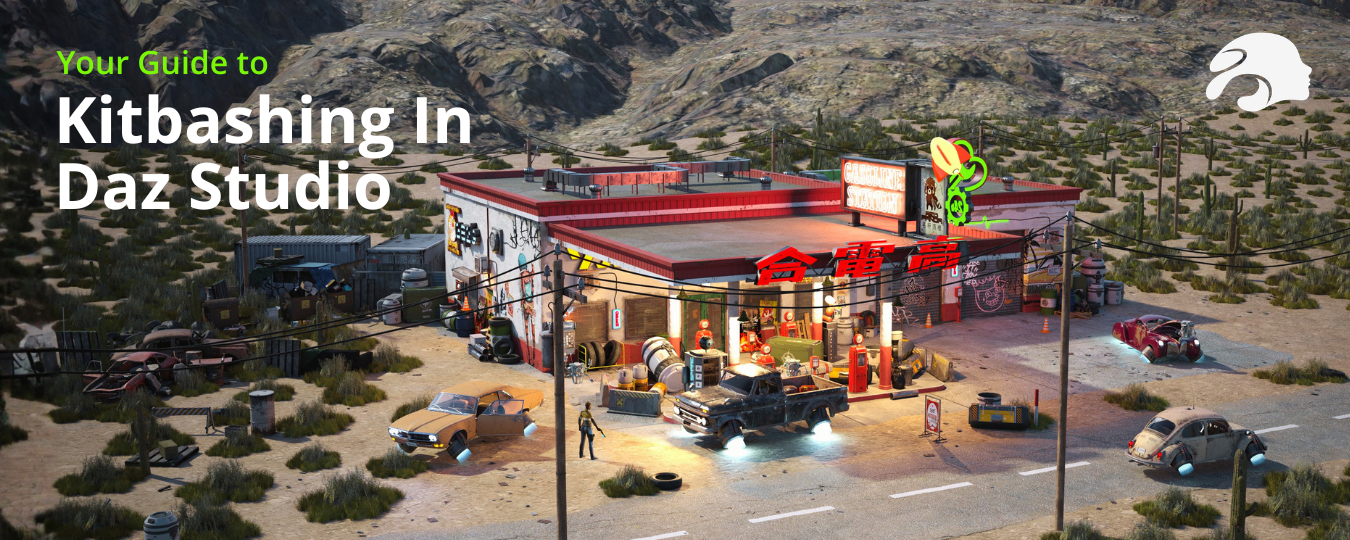
Gif of 3D gas station render coming together, asset by asset
Using Wild West Gas Station, Oasis Dream Sky, and over 20 other props and bundles.

Duplicate vs. Instance, Side by Side

Since this trips people up in practice, here’s what it actually looks like when you test it on the same object.

Two tree objects in Daz Studio, both with the bottom of the trunk removed — the original and its duplicate, side by side.
Duplicated in Daz Studio 6 — the trunk edit carries over to the new copy.


Two tree objects in Daz Studio, both with the bottom of the trunk removed — the original and an instance of it, side by side.
Instanced in Daz Studio 6 — the trunk edit also carries over, since geometry edits are no longer duplicate-only as of this version.

Do You Need Special Software Like Kitbash3D?

No. Kitbashing is a general technique, not a specific product, and it predates the company Kitbash3D entirely. In Daz Studio, you can do it easily using content you already own from Daz or other vendors. You mix and match pieces through the Content and Smart Content panes.

That said, there’s a more advanced route if you want to bring in kits from third-party marketplaces that aren’t natively Daz-ready (like Kitbash3D’s own Blender-format packs):

Native Daz kitbashing Importing external kits (e.g. Kitbash3D)
Extra software needed None Blender, plus a script like Multi Map Loader
Skill level Beginner-friendly Intermediate/advanced
Best for Combining Daz-ready environment and prop sets Bringing in non-Daz 3D asset libraries

The import route works. It involves exporting objects from Blender as OBJ files, rebuilding materials with a script like Multi Map Loader, and manually fixing textures. It’s worth knowing about, but not something you need for most kitbashing projects.

Tips for Kitbashing Environments That Don’t Look Copy-Pasted

A few things that make a kitbashed scene look intentional instead of obviously mixed:

  • Vary textures and materials across repeated pieces so identical props don’t read as duplicates sitting side by side.
  • Use duplication instead of instancing whenever a piece needs its own independent materials. You can already change position, rotation, and scale independently on either one. And if you’ve made a Geometry Editor edit you don’t want carried over, Daz Studio 6 lets you bring in a fresh, unaltered copy instead.
  • Lean on the Geometry Editor to break a single prop into separate parts. You can reposition each one individually, rather than moving a whole object as one rigid block.
Two identical tree objects in Daz Studio side by side — one with the bottom of its trunk removed in the Geometry Editor, the other a fresh copy brought in afterward with the full trunk intact.
Right: the tree after removing the bottom of the trunk in the Geometry Editor. Left: the same tree brought in fresh afterward, unaffected by the edit — proof that Daz Studio 6 lets you pull an unaltered copy even from an already-edited source.


If the scene you’re kitbashing is headed into a game rather than a still render, check our post on the Daz 3D Interactive License first. Combining multiple licensed assets into one environment doesn’t change what license each individual piece needs.

Frequently Asked Questions

What is kitbashing in Daz Studio? Kitbashing is combining pieces from different 3D asset sets — like walls, props, or textures from separate products — to build a new environment, rather than using any single set exactly as it shipped.

Do I need Kitbash3D or other special software to kitbash in Daz Studio? No. Kitbashing is a general technique that predates the Kitbash3D brand. You can do it entirely inside Daz Studio using the Content Library and Smart Content pane with assets you already own.

What’s the difference between duplicating and instancing when kitbashing? As of Daz Studio 6, both duplicating and instancing preserve any Geometry Editor edits you’ve made to a piece. The real difference is materials: an instance shares materials with its source object, while a duplicate can have its own independent materials. You can change position, rotation, and scale independently either way.

Can I mix products from different vendors when kitbashing? Yes, as long as the assets are compatible with Daz Studio’s file formats. Many creators combine environment and prop sets from multiple vendors in the same scene.

Do I need Blender to kitbash in Daz Studio? No, not for native Daz content. You only need Blender if you’re importing kits built for other software, like Kitbash3D’s Blender-format packs. Those require an extra conversion workflow to bring into Daz Studio.

What Is the Daz 3D Interactive License? (And Do You Need It?)

Last updated: September 11, 2026

The Daz 3D Interactive License is the license required when a Daz 3D asset is used directly inside a game or interactive app, not just rendered as a finished image or video. It’s separate from the Standard License that comes bundled with most purchases, and the two are not interchangeable.

Here’s the scenario that trips people up: you spend a weekend building the perfect NPC in Daz Studio. The lighting is right, the pose is right, and you can already picture them wandering around inside the indie game you’ve been dreaming up.

So you export the asset – maybe through the Daz to Unity Bridge or Daz to Unreal Bridge – and drop it into your game engine. Legally, that’s the exact moment you might hit a wall you didn’t know was there: the difference between “I rendered a cool screenshot” and “I built a game with this asset,” and Daz treats those two cases very differently.

“We’re seeing more and more of our creators bring their work into interactive projects, and we want thatpath to be as clear as possible — the Interactive License exists so game developers can build withconfidence, not guesswork.” — Steve Spencer, Head of eCommerce, Daz 3D

Let’s unpack what that actually means, where the line is, and how to check before you get attached to an asset that might not be cleared for the job.

What Does the Interactive License Actually Cover?

The Interactive License lets your project use and manipulate the asset’s original 3D data – not just a finished render of it. Specifically, it lets you:

  • Use 3D content directly inside video games and interactive applications
  • Distribute 3D assets, modified or in their original form, within that interactive media
  • Let your app or game manipulate the original 3D data in real time: posing, animating, or rendering on the fly

Once your project needs to do something with the asset’s original 3D data – pose it, animate it, let a player walk around it – you’ve crossed from “output” into “interactive.” That’s the exact territory this license covers.

Standard License vs. Interactive License

The Standard License covers 3 types of 2D output: render images, render videos, and render HDRIs/VR scenes. However, it does not cover using the original 3D data inside software that a player or user interacts with, that’s what the Interactive License is for.

StandardLicense InteractiveLicense
Render images Yes Yes
Render videos Yes Yes
Render HDRIs / VR scenes Yes Yes
Use original 3D data inside a game or app No Yes
Distribute the 3D asset (modified or original) inside interactive media No Yes

Every Daz purchase comes with a Standard License by default, and for most renders, videos, and VR scenes, that’s all you’ll need. The moment a game engine reaches in and manipulates the original 3D data – which happens the instant a player moves the camera – you’re in Interactive License territory instead.

Do I Actually Need One?

Yes, if your game or app uses the original 3D asset itself, modified or untouched. It doesn’t matter whether it’s a solo project or a commercial release, the rule is based on how the asset is used, not the size of the project.

If your project is a rendered image, an animated short, or a VR scene you’re not letting anyone else manipulate, the Standard License already covers you.

One catch: not every product offers the Interactive License option. Each creator individually decides whether to make it available for their product. That means it’s possible to build half a project around an asset, only to find out later the creator never enabled interactive use for it – worth checking before you get attached, not after.

What You Still Can’t Do (Even With One)

Even with an Interactive License, 2 restrictions still apply:

  1. You can’t publish, sell, or sublicense anything –  a render, an animation, an app – if the original licensed content could be separately exported, extracted, or de-compiled from it.
  2. You can’t sell the licensed content on its own, separate from your finished project, without Daz’s express written consent.

The asset needs to stay embedded in your finished product, not become something someone else can pull out and resell on its own.

Where to Check Before You Build

Product pages indicate whether the Interactive License is available for that specific item. They’re worth checking before an asset becomes load-bearing in your project. Full legal terms are in Section 3.0 of the Daz 3D EULA, with a plain-language rundown on the Interactive License Info page.

One more thing worth knowing upfront: Interactive Licenses are generally not eligible for returns or refunds unless stated otherwise. So, a five-minute check before purchase can save a much bigger headache later.

Looking for environments to build your project around in the first place? Check out The Best 3D Environments for Daz Studio This Past August!

Frequently Asked Questions

What is the Daz 3D Interactive License? It’s a license that permits Daz 3D content to be used inside video games and interactive applications, including distributing the 3D assets – modified or original – within that software, rather than only using rendered images or videos of them.

Do I need an Interactive License to use Daz assets in my game? Yes. If your game or app uses the original 3D data, not just a rendered image or video, you need an Interactive License for those specific assets, since apps and games alter and manipulate the underlying 3D data directly.

How is the Interactive License different from the Standard License? The Standard License covers 3 types of 2D output: render images, render videos, and render HDRIs/VR scenes. The Interactive License covers using the original 3D data itself inside interactive software, which the Standard License does not permit.

Can I sell 3D assets separately from my finished game or app? No, not without Daz’s express written consent. The license requires the content to remain embedded in your finished application. Meaning, you can’t extract and resell it as a standalone asset.

Is an Interactive License available for every Daz product? No. Each product’s creator chooses whether to offer an Interactive License for it. If a product doesn’t offer one, it can’t legally be used as 3D content in agame or app, regardless of your Standard License.

The Best 3D Environments for Daz Studio This August

A great scene is often the difference between a render that gets scrolled past and one that stops the feed. Environments do the heavy lifting that props alone can’t – they set mood, imply backstory, and give your characters somewhere believable to exist. This August’s new arrivals cover six very different genres: a dystopian sci-fi checkpoint, a noir heist trilogy, a Pacific Northwest forest kit, a kawaii Japanese café, a sun-drenched French vineyard, and a luxury private island villa. Whether you’re illustrating a graphic novel, building a game background, or just want a fresh backdrop for your next portrait render, there’s a good chance one of these six ready-to-render 3D environments fits the brief.

Here’s a closer look at what’s inside each set, who it’s for, and what makes it worth the download — plus a quick-reference table if you just want the highlights.

1. Polish: Money Heist Environment Bundle – Best 3D Environment Bundle for Crime Thrillers

“When I do environment design, I always think about a character living in the space I create — every object and detail is a trace they’ve left behind. I just love creating these scenes, honestly, like a kid playing with Legos.” — Polish, Daz 3D artist and creator of the Money Heist Environment Bundle

The Polish Money Heist Environment Bundle packs three connected scenes — a planning saferoom, a private auction house, and a treasure vault — into one narrative-ready bundle. Because the sets are designed to work together, they’re ideal for a multi-panel comic or a sequential render series that follows a heist from planning to payoff. Artist Polish drew inspiration straight from favorite heist films — think Ocean’s Eleven and Now You See Me — aiming for a tense, cinematic atmosphere where the lighting and textures make each space feel genuinely lived-in.

What’s inside:

Best for: crime and espionage illustrators, mystery and thriller webcomics, and cinematic-style sequential art.

Art auction 3D environmentEntrance to a bank vault 3D environment

2. Checkpoint 17 – Best Sci-Fi 3D Environment

Checkpoint 17 by Stonemason is a gritty, modular security checkpoint built for border-control, transit-security, and near-future dystopian scenes. It’s the kind of environment that instantly implies tension — a single frame can suggest an entire world of surveillance and restriction without a caption.

What’s inside:

  • A complete pre-built scene file plus 40+ individual modular 3D assets — booths, scanners, barriers, cameras, consoles, monitors, fencing, and railings
  • 65 texture maps (displacement, normal, roughness, metallic, and emissive) for realistic worn-concrete and metal surfacing
  • Textures ranging from 512×512 up to 2048×2048

Best for: cyberpunk and sci-fi artists, game background designers, and anyone illustrating dystopian or border-control narratives.

Checkpoint 17 environment by Stonemason Checkpoint 3D environment with a standing guard

3. Hemlock Grove Bundle – Best 3D Assets for Natural Landscapes

Hemlock Grove by MartinJFrost is less a single scene and more a toolkit: a full range of Mountain Hemlock trees, from saplings to mature forest giants, plus stumps and logs. It’s built specifically for scattering and instancing, so it’s as useful for a single accent tree as it is for a dense forest backdrop.

What’s inside:

  • A full size range of Hemlock trees, stumps, and logs
  • Low-resolution models optimized for scattering tools and ultra-scenery workflows
  • Flexible scaling and rotation for natural, non-repetitive placement

Best for: nature and landscape artists, anyone building forest or clearing scenes, and users who want reusable 3D assets rather than one fixed set.

Wide shot of landscape with pine trees and a deer Aerial shot of vast pine tree 3D landscape

4. SE Nekobimi Cafe – Best Kawaii-Style 3D Environment

SE Nekobimi Cafe is a Daz Original, created in collaboration with artist Space Elsa — a modular Japanese-inspired café that’s cozy, kawaii, and detailed down to the ceramic figurines on the shelves. It includes both an exterior seating area and an interior lounge/gift-shop space, so a single kit covers a full outdoor-to-indoor scene.

What’s inside:

  • Modular architecture (walls, floors, windows, facade elements) that can be rearranged
  • 50+ decorative props including figurines, plants, menus, and themed textiles
  • 109 texture maps at 4096×4096 resolution, plus multiple color variants for walls, lamps, sofas, and pillows

Best for: anime and kawaii-style artists, slice-of-life storytelling, and game developers building cozy or social-sim environments.

Seating area of a kawaii Japanese 3D cafeCounter area of a kawaii Japanese 3D cafe

5. XI French Vineyard — Best 3D Environment for Outdoor Lifestyle Scenes

XI French Vineyard by Xivon brings a sun-warmed, romantic outdoor set to the table — wine barrels, Tuscan cypress trees, and a full vineyard estate with both day and night lighting presets ready to go.

“The French architecture ages like fine wine! We’ve always dreamed of sipping a glass amid lush French vineyards, admiring their splendid architecture — bringing that imagination into the renders was pure bliss. I’ve always been drawn to how light interacts with natural landscapes, and XI French Vineyard was designed to capture that exact sense of timeless, open-air elegance.” — Xivon, creator of XI French Vineyard

What’s inside:

  • 16 modular props: mansion, grapevines, hedges, seating, trellises, and landscape elements
  • Day and night material presets plus 5 camera presets for fast scene composition
  • 163 high-resolution textures (up to 4096×4096) covering bump, metallic, normal, roughness, and transparency

Best for: romance and lifestyle illustrators, product-style beauty renders, and anyone who wants a single environment that transforms completely between day and night.

Far away shot of French vineyard 3D environment Backlit French vineyard 3D environment

6. PW Private Island Villa — Best 3D Environment for Luxury Renders

PW Private Island Villa by PW Productions is the aspirational pick of the group – a marble-floored villa on a private island, complete with a rooftop helipad and interior hangar. It’s built for scenes that need to say “wealth” without a single line of dialogue.

What’s inside:

  • 40+ props including furniture, fixtures, and decorative elements
  • 11 customizable emitter shaders in varying wattages and colors for interior lighting control
  • Multiple scene subsets — full scene, island only, or villa only — so you can render just the piece you need
  • Over 500 texture maps up to 6000×4000 resolution

Best for: luxury lifestyle renders, architectural visualization, and any project that needs a high-end coastal or island setting.

Far away shot of 3D private island villaPool shot of 3D private island villa

How to Choose the Right 3D Environment for Your Scene

Now, with so many 3D assets available, it helps to narrow the decision to three questions:

What story does the space need to tell?

A checkpoint and a private island villa both work as “environments,” but they signal completely different things about the characters inside them. Start with the mood you want, then match the set to it.

Do you need one hero scene or reusable pieces?

Bundles like the Money Heist set build cohesive, connected storytelling across multiple renders. Kits like Hemlock Grove take the opposite approach — they hand you flexible, reusable 3D assets you scatter and recombine across many different scenes.

Will this ever leave Daz Studio?

Finally, if you plan to bring a scene into a game engine or another real-time application, check whether an Interactive License is available for that product (most Daz environments, including several above, offer one as an add-on) before you build a pipeline around it.

August’s Top 6 3D Environments at a Glance

Environment Best For Price Artist
Polish: Money Heist Environment Bundle Crime thrillers, heist stories $51.99 Polish
Checkpoint 17 Sci-fi, dystopian, security scenes $34.99 Stonemason
Hemlock Grove Bundle Forests, nature scattering, landscapes $29.99 MartinJFrost
SE Nekobimi Cafe Kawaii/anime-style interiors, slice-of-life $21.99 Daz Originals, Space Elsa
XI French Vineyard Romance, lifestyle, day/night outdoor scenes $19.99 Xivon
PW Private Island Villa Luxury, lifestyle, architectural renders $59.99 PW Productions

Frequently Asked Questions

What is the best 3D environment for Daz Studio in August?
Six well-reviewed new environments stand out this month: the Polish Money Heist Environment Bundle (crime/thriller), Checkpoint 17 (sci-fi), Hemlock Grove (nature/forest), SE Nekobimi Cafe (kawaii café), XI French Vineyard (outdoor lifestyle), and PW Private Island Villa (luxury). The right choice depends on the genre and mood of your project.

What’s the difference between a 3D environment and a 3D prop set?
An environment is typically a full, ready-to-render scene — walls, ground, lighting, and set dressing designed to work together — while a prop set is usually a collection of standalone objects you place yourself. Many Daz environments, including the ones above, include both: a complete pre-built scene plus the individual modular props used to build it, so you can use them as-is or break them apart.

Can I use Daz 3D environments in a game or real-time application?
Base licenses for Daz assets are generally intended for rendered (non-real-time) content. If you plan to use an environment in a game engine, VR project, or other interactive application, look for an Interactive License add-on on the product page — several of the sets above, including Checkpoint 17 and the Polish Money Heist Bundle, offer one.

Do these environments work with any Daz Studio figure?
Yes. Environments are scene and set-dressing assets rather than character content, so they aren’t tied to a specific figure generation — you can populate any of these scenes with the characters you already use.

Are these 3D assets beginner-friendly?
Yes. Each of these environments installs through DIM and loads as a complete scene, so new users can drop in a figure and start posing immediately, while more experienced users can dig into the individual modular props to customize the layout.

The Top 10 Best-Selling Daz 3D Products of 2026 (So Far)

Every year the Daz 3D store fills up with thousands of new releases, but only a handful break through to become genuine must-haves. Halfway through 2026, one thing is clear: this year’s bestseller list (so far) is a mix of brand-new drops, quiet workhorse tools, and a couple of longtime favorites that refuse to leave the top of the charts. Whether you’re building cinematic environments, dressing up a character for a Valentine’s Day render, or just trying to tame a content library that’s spiraled out of control, there’s something on this list for you.

Here’s what Daz artists are actually buying in 2026.

1. Main Street USA

Stonemason’s Main Street USA captures the kind of small-town downtown that lives in old photographs and half-remembered stories. It’s a fully modular environment inspired by classic American architecture, meaning every building can be rearranged into anything from a single cinematic block to a complete 360° town. Optimized for Iray and loaded with day/night material presets, matte fog options, and 21 dedicated camera angles, it’s built for artists who want a hero-shot-ready set without weeks of scene-building. If you need a nostalgic, lived-in backdrop, this is 2026’s go-to.

2. Thorns & Temptation Bundle

Herschel Hoffmeyer’s Thorns & Temptation Bundle proved that a well-timed Valentine’s Day release can stick around all year. The bundle pairs HH Lilith for Genesis 9 (with over 100 JCMs for expressive, natural bends) with the Invicta Couture Black Rose Lingerie Set and its Gothic Indulgence expansion, stilettos and ballet heels included. It requires Genesis 9 Starter Essentials, so pair it with that free download if you’re just getting into Genesis 9 pinup work.

3. Face Transfer 2

Three years after launch, itSeez3D’s Face Transfer 2 is still one of the store’s most reliable performers. The AI-powered tool transfers face shape, texture, and tone from a photo onto a Genesis 9 figure, letting you build a look-alike of anyone, family members, yourself, or an original character, without manual sculpting. It improves on the free trial version (which caps you at three watermark-free saves) with unlimited saved shapes, higher-resolution texture maps, and better image recognition. For character artists, it’s become as essential as the base figure itself.

4. EZFinder – Advanced Content Manager for Daz Studio

At $198.99, EZFinder is the priciest entry on this list, and its bestseller status says a lot about how many Daz libraries have outgrown Smart Content. Built by EZ3DTV, it’s a standalone app that organizes hundreds of thousands of assets into instant-loading “Compartments,” with a two-step inject workflow that skips the usual folder-digging entirely. Virtual Folders let you build custom collections without touching your actual file structure, and its product-metadata detection surfaces related items automatically. For anyone whose content library has become unmanageable, this is the tool 2026 buyers are reaching for.

5. Bryce 7 Pro

Some products just don’t quit. Bryce 7 Pro, originally released back in 2010, is still moving units in 2026, a testament to how many artists love its simple, built-in editor for terrain, water, atmosphere, and clouds. It’s a 32-bit legacy app at this point (not compatible with macOS 10.7+), but the low price and instant landscape presets keep it in steady rotation.

If you want that same landscape-building magic with modern performance, its spiritual successor is UltraScenery 2. Rebuilt as a true Daz Studio plug-in, it renders changes in real time, supports terrains up to 256×256m, and uses a layered biome system for realistic mixed ecosystems, all with full Iray support. Artists increasingly buy both: Bryce for quick, old-school scene sketches, and UltraScenery 2 for production-ready environments.

6. Genesis 9 Starter Essentials Expansion

Every new Daz user gets the free Genesis 9 Starter Essentials, but the Genesis 9 Starter Essentials Expansion is what turns a base figure into a genuinely custom character. It adds over 100 eyebrow options (half of them card-based for better game-engine performance), 32 eye colors, and 7 eyelash styles with 9 color options and independent upper/lower lash control. It’s the natural next purchase for beginners and a staple in more experienced artists’ character-building workflow.

7. Polish Photography Studio Bundle

The Polish Photography Studio Bundle packs three distinct shooting environments into one purchase: a contemporary fashion studio with modern lighting, a bright white bedroom studio with soft natural light, and a vintage baroque-inspired set with velvet seating and classic decor. Built for editorial, lifestyle, and portrait renders, it’s become the default backdrop for artists doing fashion and character-showcase work this year.

8. Lakehaven

Another Stonemason release, Lakehaven is a modular lakeside settlement of docks, walkways, and weathered shoreline buildings. Like Main Street USA, it scales from a small quiet harbor to a full lakeside town, making it equally suited to fantasy village scenes and cinematic waterfront establishing shots. Ten camera presets and dedicated atmosphere settings help it go from empty terrain to finished render fast.

9. Perfect Escape Bundle

Linday’s Perfect Escape Bundle leans into full nostalgic storytelling: a dForce outfit (short denim skirt, halter top, heels) for Genesis 9, 8, and 8.1 Female, paired with a fully rigged 1950s American Custom Car complete with aniblocks, weathering presets, and 20 matching character poses. It’s less a single asset than a complete scene-in-a-box, which is likely why it’s found a steady audience among artists building retro or Americana-themed renders.

10. Ghost Dynamics 2

Rounding out the list is Ghost Dynamics 2, KindredArts’ utility suite for simplifying Daz Studio’s built-in mesh smoothing and collision tools. Instead of manually configuring modifiers, it offers a Command Center script for swapping collision objects, a Quick Collision Selector, and six wearable “invisible” collision helpers that auto-trigger the right settings the moment they’re loaded. Tested with both Genesis 8 and Genesis 9, it’s a low-cost, high-impact tool for artists tired of fighting clipping and clothing-interpenetration issues by hand.


What This List Says About 2026

Looking at the full list, a pattern emerges: alongside brand-new environment and character releases, Daz artists are investing heavily in tools that solve workflow problems, content management, collision handling, face-to-character conversion, rather than just buying more assets. Meanwhile, proven names like Stonemason and long-running products like Bryce 7 continue to hold their ground next to 2026’s freshest bundles.

Ready to build your next scene? Browse the full Daz 3D Shop to grab any of these bestsellers, or start with the Genesis 9 Starter Essentials included free of charge with your free Daz Studio sign up.

Built for Realtime: Introducing Daz Game-Ready Character Assets

Character creation has never been limited to a single destination.

Artists today move between game engines, interactive experiences, virtual production workflows, realtime rendering tools, and digital worlds that demand flexibility from the assets they use.

That’s why we’re introducing a new generation of Daz Game-Ready Character Assets.

Designed specifically for modern realtime workflows, these assets provide a streamlined character structure that makes it easier to move from creation to implementation. Whether you’re building games, developing interactive experiences, creating virtual production content, or exploring realtime rendering pipelines, these assets are built to fit naturally into modern production environments.

And this is only the beginning.

Game-Ready by Design

Traditional character assets often prioritize flexibility and customization, but that flexibility can also introduce complexity.

Large numbers of texture maps, extensive material assignments, layered geometry, and deeply nested scene structures can create additional setup work when moving assets into realtime environments.

Game-Ready Character Assets are designed to simplify that process.

These characters feature streamlined geometry structures, consolidated materials, organized assets, and modern export compatibility that support smoother integration across today’s most popular realtime tools and engines.

The goal isn’t to reduce quality. It’s to reduce friction.

By simplifying how assets are structured, creators can spend less time organizing files and configuring materials and more time building their projects.

Streamlined Texture Workflows

One of the biggest changes in the new Game-Ready format is a more organized texture workflow.

Instead of managing large collections of fragmented materials and texture assignments, assets are organized into clear texture groupings such as:

  • Head
  • Body
  • Hair
  • Outfit
  • Eyes

This structure makes assets easier to import, easier to organize, and easier to customize.

Whether you’re bringing a character into a game engine, a realtime renderer, or a virtual production environment, a streamlined texture workflow helps reduce setup time and creates a cleaner path from asset to final project.

Designed for Modern Character Pipelines

The new Game-Ready Character Assets utilize MetaHuman-compatible UV layouts, helping support interoperability across modern realtime workflows.

A standardized UV structure can simplify material setup, improve compatibility between tools, and make it easier to integrate characters into existing production pipelines.

As realtime ecosystems continue to evolve, compatibility and consistency become increasingly important. These assets are designed with those modern workflows in mind.

Cleaner Assets, Simpler Organization

Character outfits often contain numerous individual elements that traditionally require separate materials and asset management.

Details such as straps, buckles, bolts, surface accessories, and other outfit components are consolidated into streamlined texture structures wherever possible.

The result is cleaner scene organization and fewer moving pieces to manage.

This approach not only simplifies setup but also improves portability between applications and helps create a more efficient realtime workflow overall.

Built for Modern Engines and Tools

Game-Ready Character Assets are designed to support a wide range of realtime production environments, including:

  • Games
  • Interactive experiences
  • Simulations
  • Virtual production
  • Realtime rendering workflows

Assets are provided in widely supported formats, including FBX and GLB, helping streamline integration across modern engines and content creation tools.

No matter where your project lives, the goal remains the same: easier setup, cleaner organization, and a smoother path from character creation to deployment.

A Growing Realtime Ecosystem

This launch represents more than a single product release.

It’s the beginning of a growing ecosystem of Game-Ready Character Assets designed for modern realtime creation.

New Game-Ready characters will continue to join the library on an ongoing basis, providing creators with an expanding collection of production-ready assets built around the same streamlined workflows and interoperability standards.

As the collection grows, creators will have access to a broader range of characters designed specifically for the demands of modern engines, realtime experiences, and interactive production pipelines.

The future of character creation extends far beyond a single application.

With Daz Game-Ready Character Assets, we’re building toward a more connected, more efficient, and more realtime-ready creative ecosystem.

TL;DR

Daz Game-Ready Character Assets feature streamlined textures, consolidated materials, and engine-friendly formats designed for modern realtime workflows.

They’re easier to import, organize, customize, and integrate—and they’re the first step in a growing library of realtime-ready characters.

Shop Now daz3d.com/game-ready

Daz Studio 6 Technical Highlights

Daz Studio 6 introduces updates across the application framework, viewport system, rendering pipeline, content management tools, and scripting engine. While many of these changes are visible to artists day-to-day, others are foundational updates that support future development of the platform.

Qt6 Migration and Platform Modernization

One of the largest changes in Daz Studio 6 is the migration to the Qt6 framework.

This work is primarily architectural rather than user-facing. Most users will not notice a specific feature tied directly to Qt6, but it provides a more modern foundation for ongoing development, maintenance, compatibility updates, and future feature work.

Loading and Viewport Improvements

Daz Studio 6 includes updates aimed at reducing interruptions while working.

Highlights include:

  • Faster scene and asset loading
  • Background texture loading
  • Updated viewport architecture
  • Rebuilt DrawStyle system

Texture Shaded and Wire Texture Shaded modes can now display temporary blue surfaces while texture maps continue loading in the background, allowing scenes to become interactive sooner.

The viewport also gains several new visualization tools, including Universal DrawStyle, Depth DrawStyle, wireframe overlays in Iray, and expanded object selection feedback options.

Victoria AI Chat

Victoria AI Chat is now available directly inside Daz Studio as a dockable pane.

The assistant can provide guidance on tools, workflows, troubleshooting, and feature discovery without requiring users to leave the application.

An internet connection is required.

Rendering Updates

Daz Studio 6 updates to NVIDIA Iray 2025.0.3 and adds support for newer NVIDIA hardware, including Blackwell / RTX 50-series GPUs.

The release also introduces Adaptive Displacement/Subdivision support for Iray materials, allowing additional surface detail to be generated at render time where needed rather than requiring uniform subdivision across an entire mesh.

Content Library and Smart Content

Several updates focus on managing large content libraries.

New capabilities include:

  • Multiple Content Library Manage pages
  • Asset and product hiding
  • Custom relabeling of products and assets
  • Compatibility-based content filtering
  • Add-On and Target discovery within Smart Content

These tools are intended to make large libraries easier to navigate and organize.

Strand-Based Hair Workflow

The Strand-Based Hair Editor has been converted from a modal dialog into an integrated View Tool.

Hair can now be edited directly within the viewport while viewing the character, lighting, and scene context. Multiple viewports, dockable Tool Settings, and faster workflow transitions are now supported.

Scripting and Developer Updates

The scripting engine has been modernized from ECMAScript 5.1-era functionality to support ECMAScript 7 / ECMAScript 2016 features, including:

  • Classes
  • const and let
  • Arrow functions
  • Template literals
  • Destructuring
  • Map, Set, and Promise

This update enables more modern scripting patterns and improved automation workflows.

Retired Technologies

As part of the platform modernization effort, several legacy technologies have been retired.

These include:

  • 3Delight Renderer
  • Collada Exporter
  • Dynamic Clothing plugins
  • Mimic and Mimic Live!
  • Photoshop 3D Bridge
  • Render Album
  • Shader Baker
  • Shader Builder

Users with production workflows that depend on legacy plugins should review the current release notes before upgrading.

Summary

Daz Studio 6 is a modernization release focused on platform infrastructure, viewport technology, rendering support, content management, and workflow integration.

Key areas of investment include:

  • Qt6 migration
  • Updated viewport architecture
  • Improved loading behavior
  • Modernized scripting support
  • Expanded content management tools
  • Updated Iray and GPU support
  • Integrated workflow tools such as Strand-Based Hair editing and Victoria AI Chat

For users interested in implementation details and complete change logs, see the full release notes.


Daz Studio 6: Spend More Time Creating

Most people don’t open Daz Studio because they want to organize files, wait for textures to load, or dig through menus.

They open it because they have a character in mind. A scene. A story. A render they want to see on screen.

Daz Studio 6 is built around that reality.

This release focuses on the parts of the creative process artists touch every day: loading scenes, finding content, working in the viewport, adjusting details, and figuring out what’s next. The goal wasn’t to change what Daz Studio is. The goal was to make it easier to stay focused on the work itself.

Built for What’s Next

Before we talk about new tools and workflow improvements, it’s worth mentioning one of the biggest changes in Daz Studio 6.

Much of the application has been updated and optimized around the Qt6 framework, bringing the software onto a more modern foundation.

This isn’t the kind of change that adds a new button or introduces a flashy feature. Most users won’t notice it directly.

What they will notice are the improvements it makes possible.

A modernized codebase gives Daz Studio a stronger foundation for ongoing development, improved compatibility with current technologies, and a platform better suited for future updates. It’s a significant investment in the long-term health of the application and one of the reasons Daz Studio 6 represents a true new-generation release.

Less Waiting Around

One of the first things you’ll notice in Daz Studio 6 is how much sooner you can get to work.

Scene and asset loading have been improved, and the application is more responsive while content is coming in. Textures can continue loading in the background, allowing scenes to become usable sooner instead of making you wait for every image to finish processing before you can move a camera or adjust a pose.

It sounds small until you’ve spent years opening scenes.

Open the scene. Start working. That’s the idea.

Answers Without Leaving the App

Daz Studio 6 introduces Victoria AI Chat directly inside Daz Studio.

If you’re learning a tool, trying to remember where a setting lives, or troubleshooting a problem, help is available without opening a browser or digging through tabs.

For newer users, that means fewer dead ends. For longtime users, it means less context-switching and fewer interruptions.

Victoria isn’t there to make art for you. It’s there to help you keep moving.

A Cleaner Way to Manage Content

Anyone with a large Daz library knows how quickly a collection can grow.

Daz Studio 6 adds more control over how content is organized and displayed. Products and assets can be hidden when you don’t need them, relabeled for clarity, and managed across multiple Content Library pages.

Smart Content has also gotten smarter about showing compatible assets, add-ons, and related content.

The result is less time spent wondering where something is and more time actually using it.

Hair Editing Where It Belongs

Strand-based hair editing is now part of the viewport workflow.

Instead of jumping into a separate editing environment, you can shape and style hair while viewing the character, lighting, pose, and scene around it.

Hair doesn’t exist in isolation. Neither should the tools used to edit it.

Seeing changes in context makes better decisions easier.

Built for the Way Artists Actually Work

Across the application you’ll find improvements aimed at everyday usability: clearer viewport feedback, better scene organization tools, animation workflow updates, and support for newer NVIDIA hardware.

None of these changes exist simply to check a feature box.

They exist because small interruptions have a way of adding up. A few extra clicks here. A loading delay there. A search through a crowded library. Over the course of a project, those moments matter.

Daz Studio 6 spends a lot of effort removing them.

Made Alongside the Community

Many of the improvements in Daz Studio 6 come from watching how artists actually use the software.

The Daz community has always been a mix of hobbyists, illustrators, storytellers, character artists, animators, and curious newcomers. They all approach the software differently, but they share one thing in common: they want to spend their time creating, not fighting their tools.

That idea shaped this release from beginning to end.

Daz Studio 6

Daz Studio 6 is a new generation of Daz Studio, but it isn’t asking you to learn an entirely new way of working.

It’s the same creative platform, refined.

Faster to navigate. Easier to manage. More helpful when questions come up. Better at staying out of the way when you’re in the middle of creating.

And that’s exactly where software belongs.